Transferring files between devices is something everyone needs to do—whether it’s moving photos from your phone to your laptop, sharing documents with a friend, or transferring videos from an old device to a new one. The good news is that there are many simple, fast, and safe ways to transfer files, even if you’re not tech-savvy.
This detailed guide explains every common method step by step so you can choose the one that works best for you.
1. Why You Need to Transfer Files
People transfer files for many reasons:
- Backing up important documents
- Sending photos or videos to friends
- Moving data to a new phone or computer
- Sharing work files
- Freeing up storage space
- Syncing files between devices
Different situations need different transfer methods, which we’ll cover below.
2. Transfer Files Using a USB Cable
This is one of the simplest and most reliable ways.
A. Phone → Computer (USB Cable)
Android to PC
- Connect the phone with a USB cable.
- On your phone, choose File Transfer (MTP).
- Open File Explorer on your PC.
- Find your phone under “This PC.”
- Drag and drop files to your computer.
iPhone to PC
- Connect your iPhone with the USB cable.
- Install iTunes if required.
- Open File Explorer → “Apple iPhone.”
- Open DCIM folder to see photos/videos.
Phone → Mac
- For Android: use the Android File Transfer app.
- For iPhone: open Photos or use the Finder to view files.
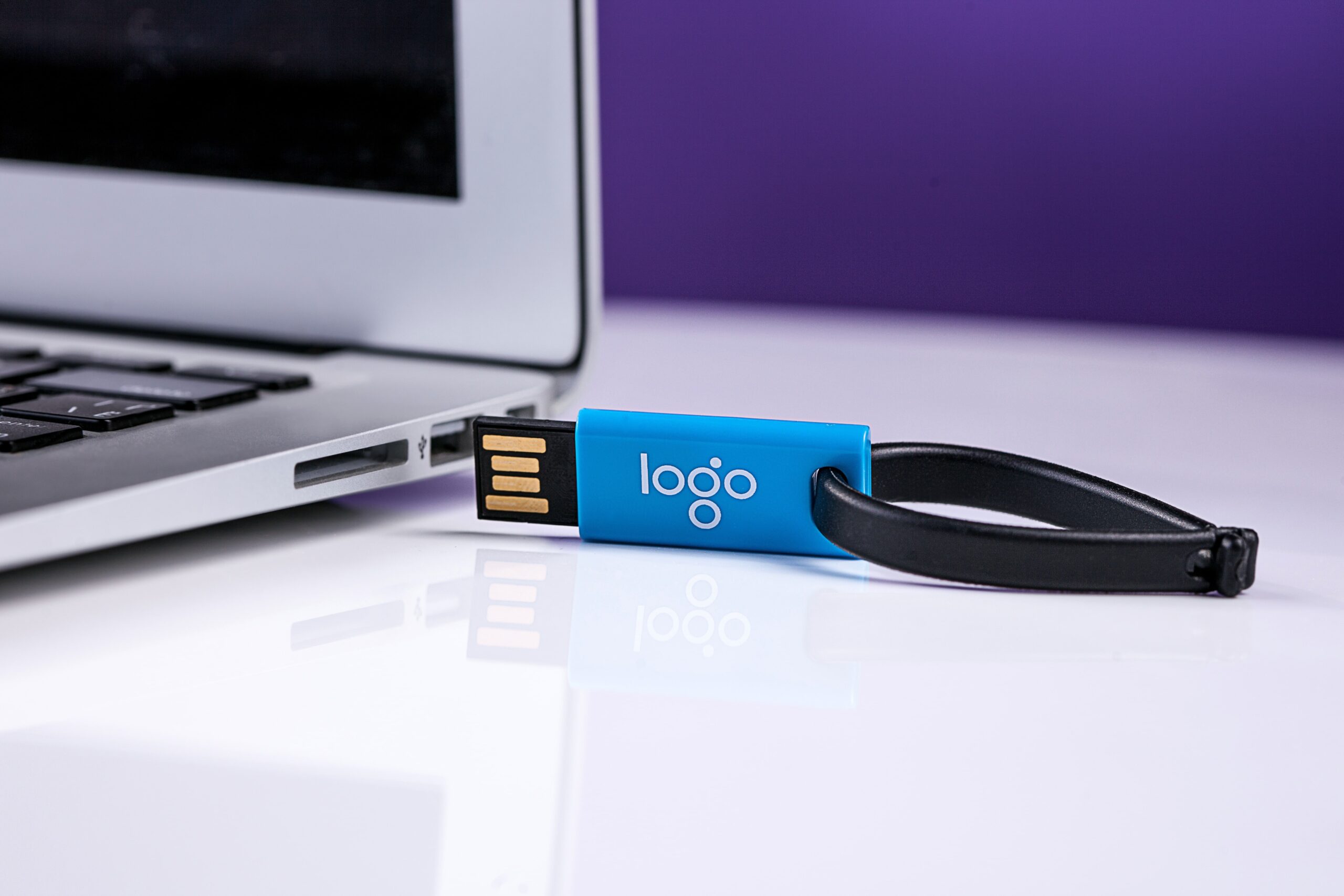
3. Transfer Between Computers Using a USB Flash Drive
A USB flash drive is extremely popular for sharing files.
Steps:
- Plug the flash drive into computer A.
- Copy files onto it.
- Safely eject the drive.
- Plug it into computer B.
- Paste the files.
Benefits
- Simple and fast
- Works without internet
- No special apps needed
4. Transfer Files Using Bluetooth
Bluetooth is good for small files.
Windows PC
- Turn on Bluetooth on both devices.
- Go to PC Settings → Bluetooth → Add Device.
- Pair both devices.
- Right-click the file → Send to Bluetooth device.
Android Phones
- Turn on Bluetooth.
- Pair with the other device.
- Share → Bluetooth → Select device.
iPhone
iPhones do not support Bluetooth file transfer to Android or PC—but they can use AirDrop or apps instead.
5. Transfer Files with AirDrop (Apple Devices Only)
AirDrop is the fastest method for Apple users.
How to Use AirDrop
- Turn on Wi-Fi and Bluetooth on both devices.
- On iPhone/Mac, open Sharing or Photos.
- Select files → tap Share → choose AirDrop.
- Select the receiving device.
- Accept the transfer on the other device.
Best For
- iPhone → Mac
- iPhone → iPad
- Mac → Mac
6. Transfer Files Using Wi-Fi Direct
Wi-Fi Direct allows fast wireless transfer without internet.
Apps that use Wi-Fi Direct:
- SHAREit
- Send Anywhere
- Xender
- Nearby Share (Android)
Nearby Share (Android)
- Select a file.
- Tap Share → Nearby Share.
- Choose the nearby device.
- Accept transfer.
7. Transfer Files Using Cloud Storage
Cloud storage allows you to store files online and then access them from any device.
Popular Cloud Services
- Google Drive
- OneDrive
- Dropbox
- iCloud (Apple)
How It Works
- Upload files to the cloud from device A.
- Open the cloud app on device B.
- Download the files.
Examples
- Upload photos to Google Drive from your phone → Download them on your laptop
- Save documents to OneDrive on PC → Open them on tablet
8. Transfer Files Through Email
Simple, but works only for smaller files (usually under 25MB).
Steps:
- Open Gmail/Outlook/Yahoo.
- Compose an email to yourself or another person.
- Attach the file.
- Send it.
- Open the email on the other device and download the file.
9. Transfer Files with Messaging Apps
Apps like WhatsApp, Telegram, or Messenger allow easy file sharing.
Telegram
- Supports very large files (up to 2GB).
- Works on phones and computers.
- Easy and quick for photos, documents, and videos.
Steps:
- Open chat → Attach file.
- Send.
- Open the app on the other device → Download.
10. Transfer Files Using External Hard Drives
Useful for large files like movies, videos, or backup folders.
Steps:
- Connect hard drive to device A.
- Copy files to the drive.
- Disconnect.
- Connect to device B.
- Paste files.
Why Use a Hard Drive?
- Huge storage capacity
- Faster than USB flash drives
- Great for backups
11. Transfer Files Using a Wi-Fi Router (Same Network)
Both devices must be connected to the same Wi-Fi network.
Methods:
- Windows shared folders
- Mac file sharing
- File transfer apps (e.g., Feem, Send Anywhere)
- NAS devices (for advanced users)
This method is very fast for transferring large files inside your home network.
12. Transfer Files From Old Phone to New Phone
Android to Android
Use:
- Google Account Backup
- Nearby Share
- Cable transfer using “Switch to Android”
iPhone to iPhone
Use:
- Quick Start
- iCloud backup
- Cable transfer via iPhone Migration tool
Android to iPhone
Use:
- Move to iOS app
iPhone to Android
Use:
- Google Drive backup
- Android Switch tools
13. Tips for Fast and Safe File Transfers
- Avoid transferring large files over Bluetooth.
- Use cloud storage for easy access across devices.
- Keep a backup on a USB or external drive.
- Use AirDrop or Nearby Share for fastest wireless transfers.
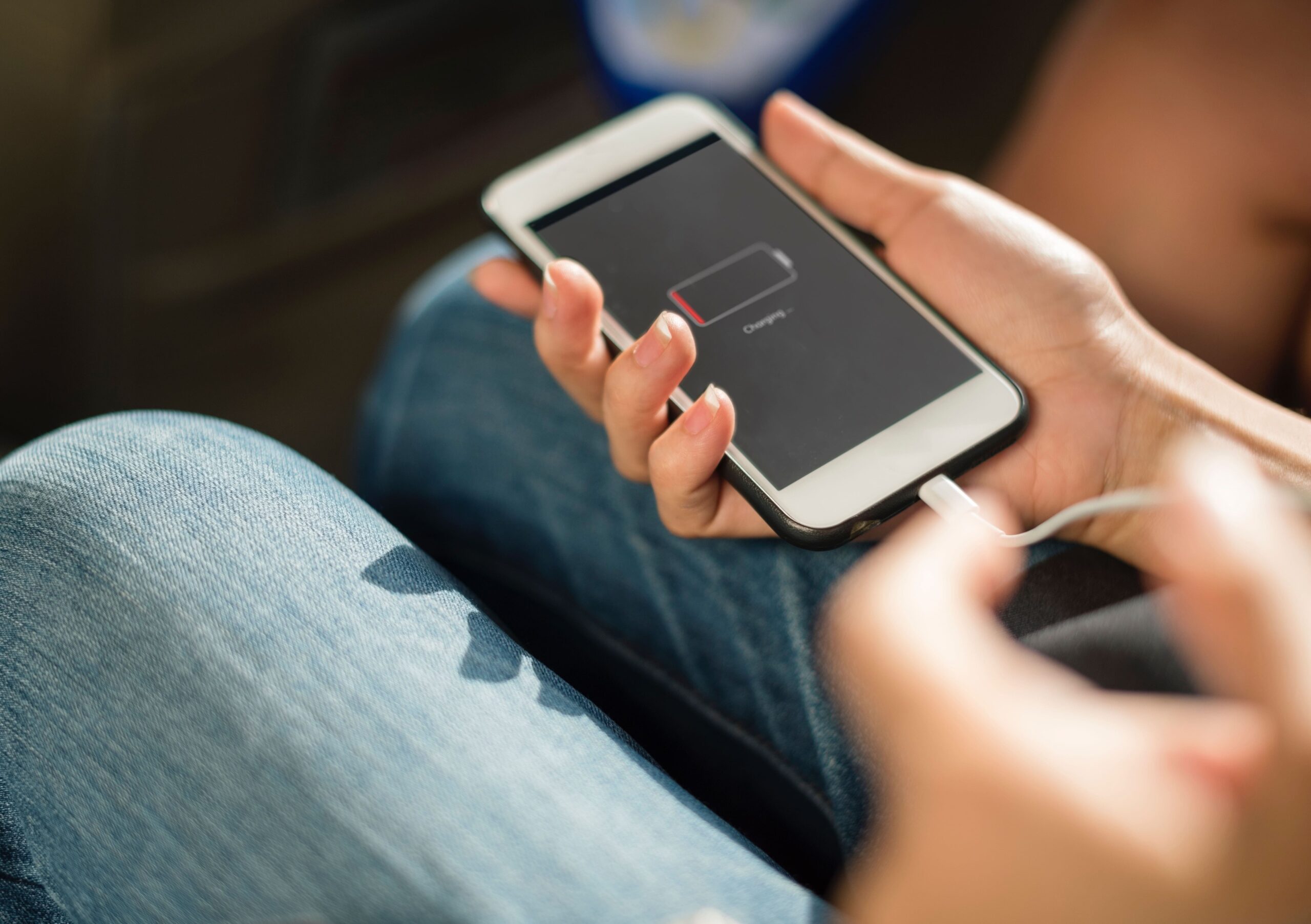
- Ensure both devices are charged or plugged in.
- Do not disconnect cables while files are copying.
Frequently Asked Questions (FAQ)
1. What is the fastest way to transfer files?
AirDrop (Apple) and Nearby Share (Android) are the fastest wireless methods. Ethernet cable or USB cable is fastest wired.
2. Why is Bluetooth slow?
Bluetooth technology is meant for small files and low power, not large data transfers.
3. Can I transfer files between Android and iPhone?
Yes, using cloud apps, email, or apps like Send Anywhere. AirDrop does not work across Android and Apple.
4. What’s the safest way to transfer important files?
Use:
- USB cable
- External hard drive
- Cloud storage with encryption
Avoid third-party apps you don’t trust.
5. How do I move all files from an old phone to a new one?
Use:
- iCloud (iPhone)
- Google Backup (Android)
- Quick Start (iPhone)
- Switch to Android / Move to iOS
6. My transfer keeps failing—why?
Common causes:
- Weak Wi-Fi
- Low storage space
- Faulty USB cable
- App permissions blocked
- File is too large