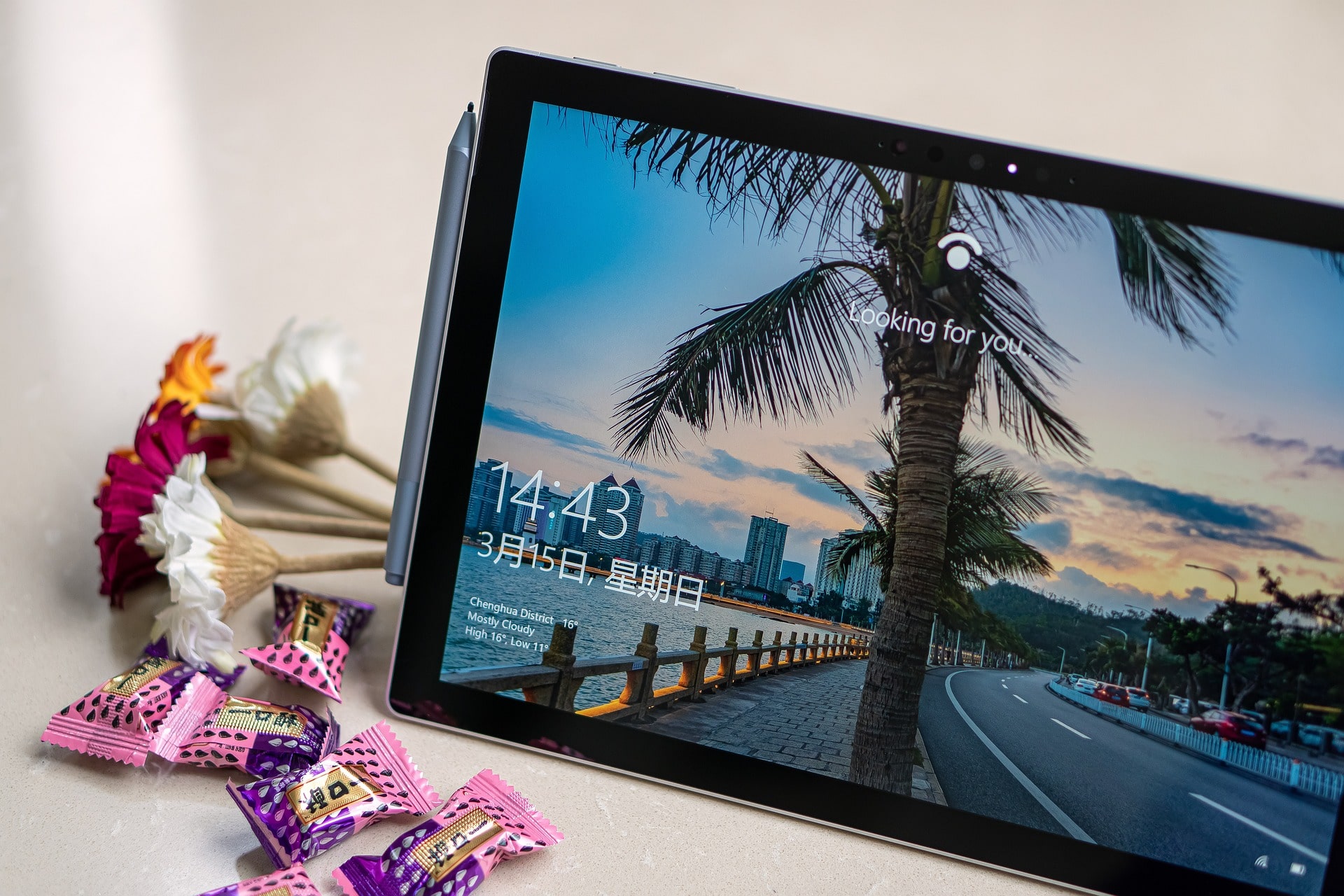
Windows 10 and Windows 11 are two of the most widely used computer operating systems in the world. Whether you’re new to computers, upgrading from an older version of Windows, or simply want to understand your PC better, this guide will walk you step-by-step through the essential features, tools, and settings you should know. By the end, you’ll feel confident navigating Windows, customizing it to your needs, and using it safely and efficiently.
1. Getting Started: What Is Windows?
Windows is an operating system created by Microsoft. An operating system (OS) is the main software that runs your computer and manages everything from files to apps to hardware.
Windows 10 and Windows 11 share many similarities, but Windows 11 adds a more modern look, improved performance, and several new features.
Key Goals of Windows
- Help you run apps and programs
- Allow you to manage files easily
- Connect to the internet
- Customize your PC to your preferences
- Keep your system secure
2. Understanding the Desktop Interface
When you turn on your computer and log in, the first screen you see is the desktop.
Main Desktop Elements
a. Start Menu
Located at the bottom-left of Windows 10 or centered in Windows 11.
The Start menu lets you:
- Open apps
- Search for files or settings
- Shut down or restart your computer
- Pin favorite programs
b. Taskbar
The bar at the bottom of your screen.
It contains:
- App icons
- Open windows
- System tray (Wi-Fi, sound, battery, date/time)
- Search bar
- Start button
c. Desktop Icons
Shortcuts to apps, files, or folders you use often.
d. Action Center / Notifications
- Windows 10: Right side of the screen
- Windows 11: Notification Center and Quick Settings (sound, Wi-Fi, brightness)
This area shows system alerts and quick controls.
3. Creating and Managing User Accounts
Windows allows multiple people to use the same computer safely.
Types of Accounts
- Microsoft Account: Syncs files, settings, apps, and cloud storage
- Local Account: Basic offline user profile
- Administrator: Has full control to install software and adjust system settings
- Standard User: Limited access for safety
How to Add a New Account
- Open Settings
- Go to Accounts
- Select Family & other users
- Choose Add account
If you want syncing, choose a Microsoft account. Otherwise, select “I don’t have this person’s sign-in information” → Add a local user.
4. Using File Explorer: Managing Files and Folders
File Explorer is where you organize documents, downloads, pictures, and more.
Key Areas in File Explorer
- This PC: Shows drives and folders
- Downloads: Files you downloaded from the internet
- Documents / Pictures / Videos: Personal files
- Desktop: Items visible on your desktop
Basic File Actions
- Create new folder: Right-click → New → Folder
- Copy/Paste: Ctrl + C / Ctrl + V
- Rename file: Right-click → Rename
- Delete: Press Delete key or right-click → Delete
Searching for Files
Use the search bar at the top-right of File Explorer or the Start menu search.
5. Installing and Uninstalling Apps
How to Install Apps
Option 1: Microsoft Store
- Safe and easy
- Apps verified by Microsoft
Option 2: Download from Websites
- Only download from trusted sites
- Avoid suspicious files to prevent viruses
How to Uninstall Apps
- Open Settings
- Go to Apps
- Choose Installed Apps / Apps & features
- Click Uninstall
6. Customizing Windows to Fit Your Needs
Personalization Settings
Go to Settings → Personalization
You can change:
- Background wallpaper
- Colors
- Themes
- Lock screen
- Taskbar settings
- Start menu layout
Dark Mode
Settings → Personalization → Colors → Choose Dark
7. Essential Keyboard Shortcuts
Learning shortcuts saves time and boosts productivity.
| Shortcut | Action |
|---|---|
| Ctrl + C | Copy |
| Ctrl + V | Paste |
| Ctrl + Z | Undo |
| Win + E | Open File Explorer |
| Win + D | Show Desktop |
| Win + L | Lock Computer |
| Alt + Tab | Switch Windows |
| Win + Shift + S | Screenshot Tool |
8. Internet and Wi-Fi Setup
- Click the Wi-Fi icon in the taskbar
- Choose your network
- Enter the password
- Click Connect
Using Microsoft Edge or Other Browsers
- Edge (default)
- Chrome
- Firefox
Use the browser to search, download files, and access websites.
9. Basic Security Essentials
Windows 10/11 includes built-in protections.
Windows Security Tools
- Virus & threat protection
- Firewall
- Account protection
- Device health
Tips to Stay Safe
- Avoid unknown downloads
- Install updates regularly
- Use strong passwords
- Enable two-factor authentication for your Microsoft account
10. Important Windows Settings Beginners Should Know
a. Windows Update
Ensures your system stays secure.
Settings → Windows Update
b. Storage Settings
Check disk space and clean unwanted files with Storage Sense.
c. Bluetooth
Connect wireless devices like headphones or keyboards.
Settings → Bluetooth & devices
d. Accessibility Features
For vision, hearing, and mobility support.
Settings → Accessibility
11. Backing Up Your Files
Windows offers multiple backup methods:
OneDrive Backup
- Syncs files to the cloud
- Easy to restore on new devices
External Drive Backup
File History → Backup options → Add a drive
12. Troubleshooting Beginner Problems
a. PC Running Slow
- Restart your computer
- Close unused apps
- Clear temporary files
- Check for viruses
- Disable startup programs
b. Wi-Fi Not Working
- Restart router
- Reconnect to network
- Run Windows Network Troubleshooter
c. Programs Not Responding
Press Ctrl + Shift + Esc → Task Manager → End Task
Frequently Asked Questions (FAQ)
1. Can Windows 10 apps run on Windows 11?
Yes. Almost all Windows 10 apps work on Windows 11 without issues.
2. Do I need a Microsoft account to use Windows 11?
Windows 11 Home requires one, but Windows 11 Pro allows a local account.
3. Is Windows 11 better than Windows 10?
Windows 11 offers better performance, new features, and a modern design, but both versions remain reliable.
4. How often should I update Windows?
As soon as updates are available. Regular updates keep your system secure.
5. What should I do if my PC is very slow?
Try cleaning storage, disabling startup apps, updating Windows, or scanning for viruses.
6. Is Windows 10 still supported?
Yes, but support ends on October 14, 2025, so upgrading to Windows 11 is recommended.