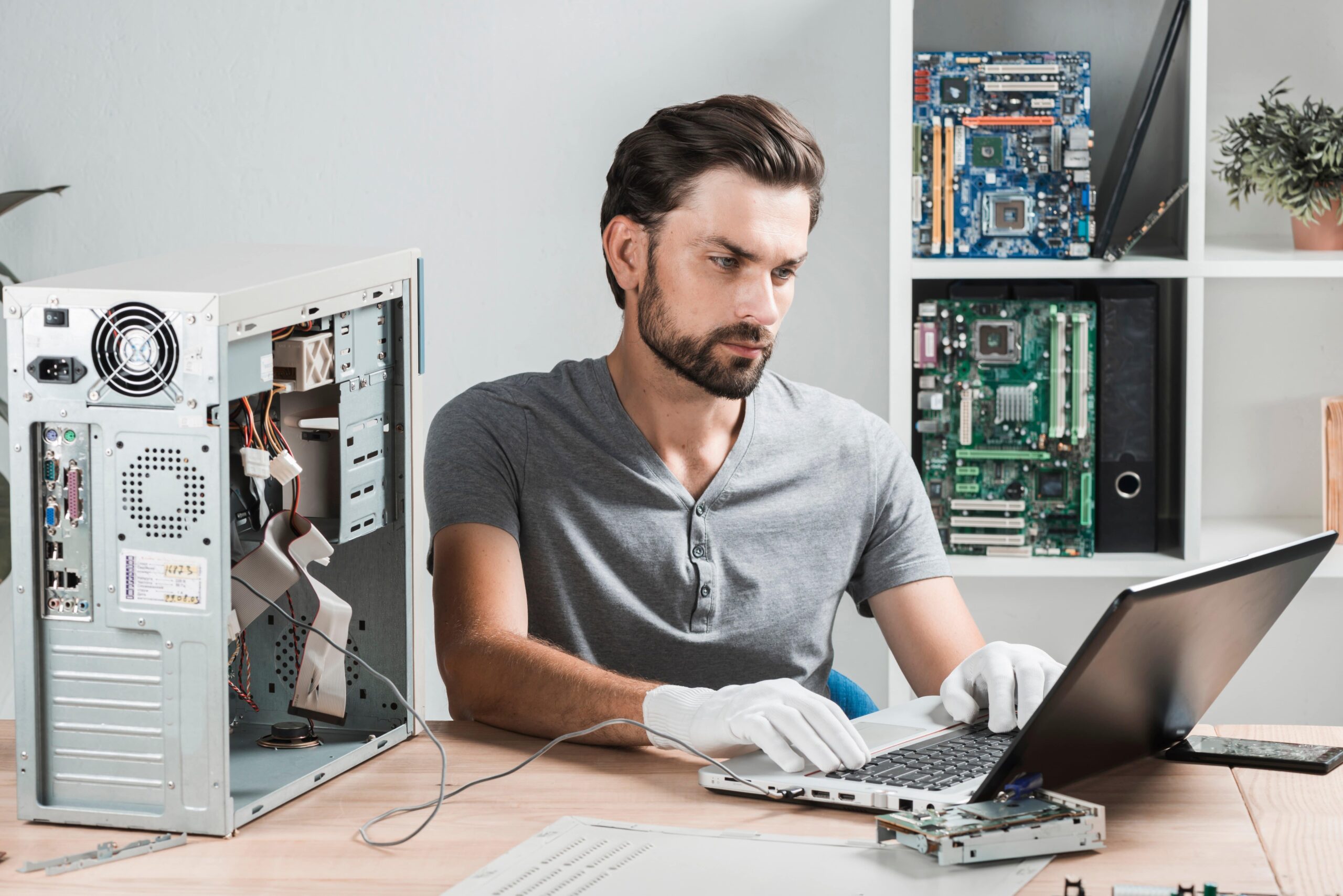
Computers are powerful tools, but even the best machines run into problems—slow performance, freezing apps, random restarts, storage issues, or internet problems. The good news is that most computer issues have simple solutions you can try before visiting a technician.
This guide will walk you through common problems and their easiest fixes. All solutions are written in simple steps suitable for beginners using Windows 10 or Windows 11.
1. Computer Running Slowly
A slow computer is the most common issue. Luckily, it’s also the easiest to fix.
A. Restart Your Computer
A restart clears temporary files and refreshes the system.
- Click Start
- Select Restart
B. Close Unnecessary Programs
- Press Ctrl + Shift + Esc to open Task Manager
- Check the Processes tab
- Close apps using too much CPU or memory
C. Disable Startup Programs
Too many programs opening at startup slows your computer.
- Open Task Manager
- Click Startup
- Disable apps you don’t need (Spotify, Discord, etc.)
D. Free Up Disk Space
- Go to Settings → System → Storage
- Use Storage Sense to clean temporary files
E. Update Windows
Sometimes updates fix bugs that cause slowdowns.
Settings → Windows Update → Check for updates
2. Computer Freezes or Crashes
Freezing can happen for many reasons: overheating, too many apps, or outdated drivers.
A. Force Restart
If everything is frozen:
- Hold the Power button for 5–10 seconds
B. Close the Problem App
If one program freezes:
- Press Ctrl + Alt + Delete
- Choose Task Manager
- End the frozen app
C. Update Drivers
Outdated hardware drivers can cause crashes.
- Right-click Start
- Choose Device Manager
- Update graphics, audio, and network drivers
D. Check for Overheating
- Ensure your computer has good ventilation
- Clean dust from fans
- Avoid using the computer on beds or couches
E. Run a System Scan
Troubleshooter:
Settings → System → Troubleshoot → Other troubleshooters
3. Internet Is Slow or Not Working
A. Restart Router and Computer
Most internet issues are fixed by a restart.
B. Check Wi-Fi Connection
- Click the Wi-Fi icon
- Ensure you’re connected to the correct network
- Try moving closer to the router
C. Run Windows Network Troubleshooter
Settings → Network & Internet → Troubleshoot
D. Forget and Reconnect to Wi-Fi
- Settings → Network & Internet → Wi-Fi
- Select the network
- Click Forget
- Reconnect with your password
E. Use an Ethernet Cable
A wired connection is always faster and more stable.
4. Programs Not Opening or Crashing
A. Restart Your Computer
Always try this first.
B. Update the App
Some programs crash because they’re outdated.
- Open Microsoft Store → Updates
- Or update from the app’s website
C. Reinstall the App
- Go to Settings → Apps
- Uninstall the program
- Install it again
D. Check for Corrupted Files
You can use Windows built-in tool:
- Open Command Prompt (admin)
- Type:
sfc /scannow - Press Enter
This repairs damaged system files.
5. Computer Not Turning On
This can feel scary, but usually it’s something simple.
A. Check Power Cable
- Make sure the cable is plugged in securely
- Try a different outlet
B. Remove External Devices
Sometimes USBs or accessories cause startup issues.
Remove:
- USB drives
- External hard drives
- Printers
- Headphones
Then turn it on again.
C. Hold Power Button
Hold the button for 10 seconds to force it to start.
D. Check Battery (Laptops)
- Plug the laptop in
- Leave it charging for 10–15 minutes
- Try turning it on again
If nothing works, the battery or power supply may need repair.
6. Blue Screen Errors (BSOD)
Blue screens happen when Windows encounters a serious error.
A. Restart Your Computer
Sometimes it’s temporary.
B. Remove New Hardware
If you recently installed hardware, unplug it.
C. Update Windows and Drivers
Outdated drivers often cause blue screens.
D. Run Memory and Hardware Tests
- Press Windows + R
- Type mdsched.exe
- Restart and scan
7. Audio Not Working
A. Check Audio Settings
- Click the volume icon
- Make sure sound isn’t muted
- Select the correct output device
B. Check Cables and Headphones
Try a different pair to rule out damage.
C. Restart the Audio Service
- Right-click Start
- Device Manager
- Audio Inputs and Outputs
- Update or restart the driver
8. Printer Not Printing
A. Check Printer Power and Cable
Simple but important.
B. Restart Printer
Turn it off and on again.
C. Set Printer as Default
Settings → Devices → Printers → Set as default
D. Clear Print Queue
- Open Control Panel
- Devices and Printers
- Right-click your printer
- Choose See what’s printing
- Cancel all documents
9. Computer Overheating
A. Clean Dust
Dust blocks airflow and overheats your system.
B. Improve Airflow
- Don’t block the vents
- Use a cooling pad for laptops
C. Reduce Heavy Tasks
Close games, video editors, or Chrome tabs if the system gets hot.
10. Storage Full
A. Use Storage Sense
Settings → System → Storage → Storage Sense → Turn on
B. Delete Large Files
Check:
- Downloads
- Videos
- Old installers
C. Uninstall Unnecessary Apps
Settings → Apps → Uninstall
D. Move Files to Cloud
Use OneDrive, Google Drive, or an external hard drive.
11. Keyboard or Mouse Not Working
A. Reconnect or Replace Batteries
Wireless devices fail when batteries are low.
B. Try a Different USB Port
C. Restart the Computer
D. Update Drivers
Device Manager → Keyboard/Mouse → Update
12. Screen Display Problems
A. Check Cables (Monitors)
Loose HDMI or VGA cables cause black screens.
B. Adjust Resolution
Settings → System → Display → Resolution
C. Restart Graphics Driver
Press Win + Ctrl + Shift + B
Frequently Asked Questions (FAQ)
1. Why is my computer so slow?
Too many apps, low storage, startup apps, or outdated software.
2. Should I restart my computer often?
Yes—restart at least once a week to avoid issues.
3. What if my computer overheats often?
Clean dust, improve airflow, or check for hardware failure.
4. Why does my Wi-Fi keep disconnecting?
Weak signal, router issues, outdated drivers, or interference.
5. Is it safe to use antivirus software?
Yes. Windows Defender is great, but you can use others if needed.
6. Why do programs crash?
Corrupted files, outdated versions, low memory, or Windows issues.
7. Can updates fix computer problems?
Absolutely. Updates fix bugs and improve performance.
8. What should I do if nothing works?
Try a full system reset or consult a technician.