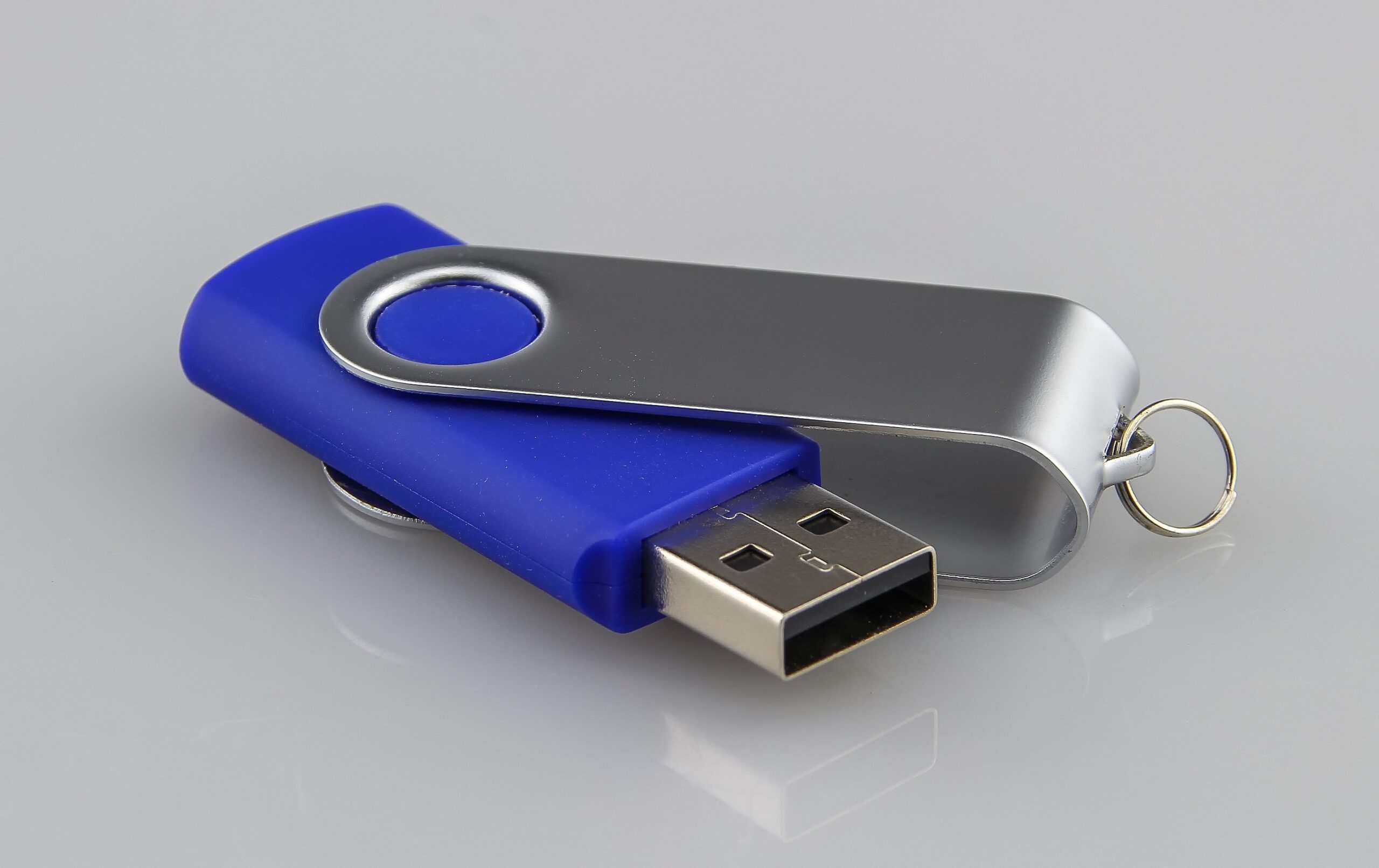
Backing up your files is one of the most important things you can do to protect your personal data. Whether it’s photos, videos, documents, or important work projects, losing them because of a device failure, virus, or accidental deletion can be devastating. Fortunately, backing up your files is easy—and it ensures your data stays safe no matter what happens.
This complete beginner’s guide will walk you through what backups are, why they matter, and the simplest ways to back up your files on a phone, computer, or cloud storage service.
1. What Does “Backing Up Your Files” Mean?
A backup is simply a copy of your files stored somewhere safe.
This copy can be stored:
- On another device (USB, external hard drive)
- In the cloud (Google Drive, OneDrive, iCloud)
- On another computer
- On a memory card
If something happens to the original files, you still have a secure duplicate.
2. Why Backups Are Important
People often forget to back up their data until something goes wrong. Backing up protects you from:
- Accidental deletion
- Phone or computer damage
- Lost or stolen devices
- Viruses and ransomware
- Corrupted files
- Hardware failures
With a backup, you can restore everything quickly and easily.
3. Types of Backups (Choose What Suits You)
3.1 Cloud Backup
Your files are stored on the internet instead of a physical device.
Examples:
- Google Drive
- OneDrive
- iCloud
- Dropbox
Best for: Photos, documents, phone backups, everyday use.
3.2 External Drive Backup
Stores your data on:
- USB flash drive
- External hard drive
- SSD portable drive
Best for: Large files, complete computer backups, offline storage.
3.3 Local Backup (Internal Storage)
Saving files to another folder or partition on the same device.
Not recommended because if your device fails, the backup is lost too.
4. Backing Up Files on Your Computer (Windows & Mac)
4.1 How to Back Up Files on Windows
Option 1: Copy to External Drive
- Plug in a USB or external hard drive
- Open File Explorer
- Drag and drop important folders (Documents, Pictures, Desktop) to the drive
- Safely eject the drive
Option 2: Use Windows Backup
Windows 10/11 includes built-in backup tools.
Steps:
Settings → Update & Security → Backup → Add a Drive
Then choose what you want to back up automatically.
Option 3: Use OneDrive
- Sign in with a Microsoft account
- Upload files to OneDrive folder
- They will sync to the cloud automatically
4.2 How to Back Up Files on Mac
Option 1: Time Machine
Time Machine makes full backups automatically.
Steps:
- Connect an external drive
- macOS will ask: “Use this drive for Time Machine?” → Yes
- Backups begin automatically
Option 2: iCloud Drive
- Go to System Settings
- Click Apple ID → iCloud
- Enable iCloud Drive
- Drag your files to the iCloud Drive folder
5. Backing Up Your Phone (Android & iPhone)
5.1 Backing Up on Android
Option 1: Google Drive Backup
- Settings
- Backup
- Turn on Backup by Google One
This saves:
- Contacts
- Photos
- SMS
- Apps
- Settings
Option 2: Backup Photos
Open Google Photos → Turn on Backup
Your images will sync to the cloud automatically.
5.2 Backing Up on iPhone
Option 1: iCloud Backup
- Settings
- Tap your name
- iCloud
- iCloud Backup
- Turn on Back Up This iPhone
Option 2: Backup with a Computer
Using Finder (Mac) or iTunes (Windows):
- Connect your iPhone
- Select “Back Up Now”
This saves a full copy of your phone.
6. Best Practices for Safe Backups
6.1 Follow the “3-2-1 Backup Rule”
For maximum safety:
- 3 copies of your data
- 2 different types of storage
- 1 copy stored offline
6.2 Organize Your Files
Well-organized folders make backups faster and easier.
6.3 Automate Your Backups
Use automatic syncing services like:
- OneDrive
- Google Drive
- Time Machine
- iCloud
6.4 Backup Regularly
Do it:
- Daily for important data
- Weekly for normal use
- Monthly for occasional backups
6.5 Keep External Drives Safe
Store them:
- In a dry place
- Away from dust and heat
- Not always plugged in (to avoid viruses)
7. Restoring Files from a Backup
7.1 From Cloud Storage
Simply open the app (Google Drive, iCloud, OneDrive) and download the file you want.
7.2 From an External Drive
Plug in the drive → Copy the files back to your computer or phone.
7.3 From Phone Backups
On Android or iPhone, restore during device setup or from settings.
8. Common Mistakes to Avoid
- Only keeping one copy of a file
- Forgetting to back up for months
- Storing the backup on the same device
- Ignoring cloud storage
- Mixing personal and work files carelessly
- Overfilling cloud storage without organizing
Avoid these habits to keep your data safe long-term.
9. Frequently Asked Questions (FAQ)
Q1: How often should I back up my files?
Weekly for average users, daily for important data.
Q2: Is cloud backup safe?
Yes, major services use strong encryption. Just use a strong password.
Q3: What’s the easiest backup method for beginners?
Using Google Drive or iCloud—simple, automatic, and secure.
Q4: How much storage do I need for backups?
Depends on your files, but most people need:
- 50GB–200GB in the cloud
- 1TB external hard drive for computer backups
Q5: Do I need an antivirus for backups?
Not required, but helpful to avoid backing up infected files.