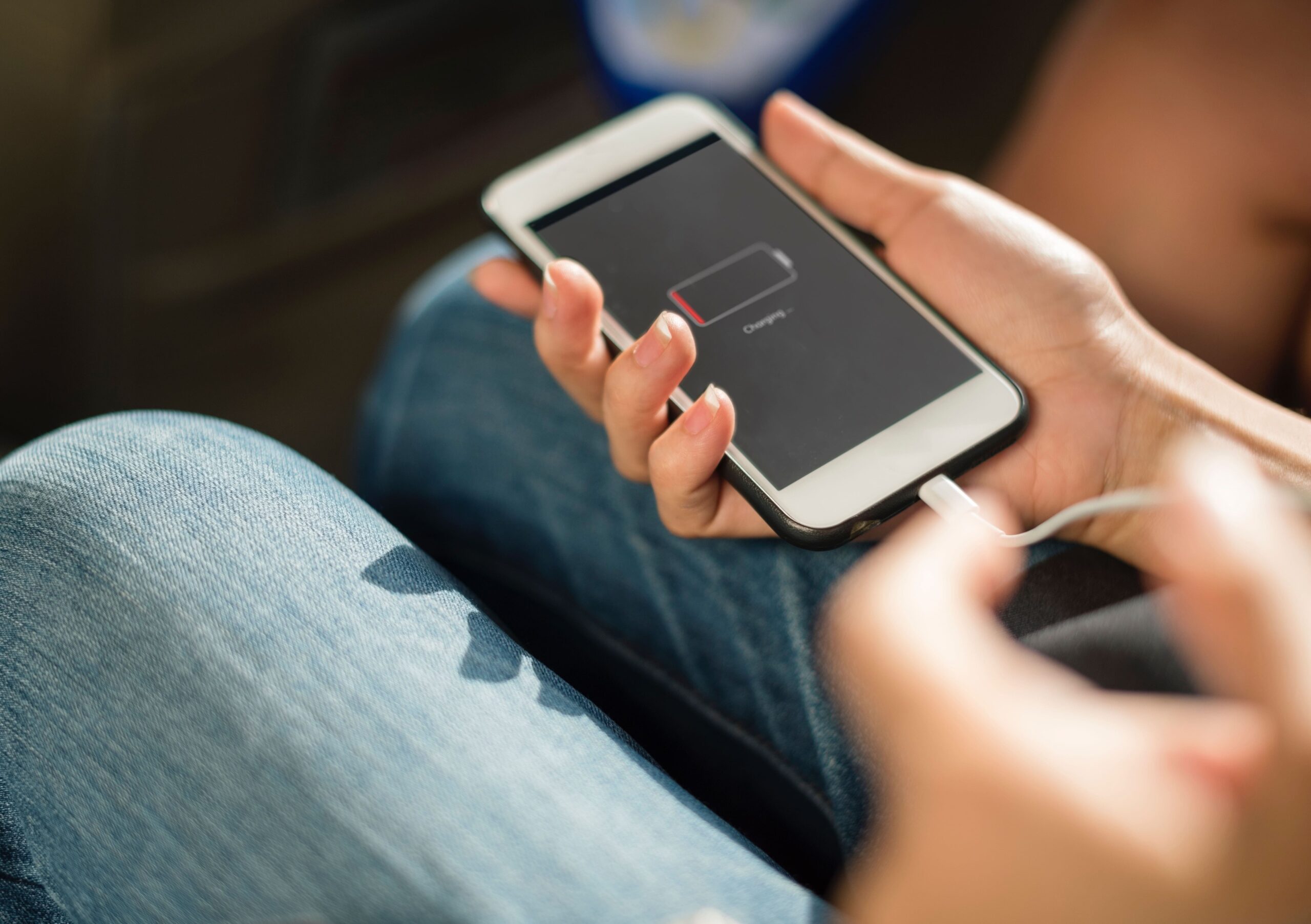
Smartphone batteries drain faster than ever because we use our phones for everything—social media, videos, GPS, messaging, games, and more. The good news is: with the right habits and simple settings, you can make your battery last all day (and even extend its lifespan for years).
This guide explains everything in easy steps.
1. Understand Why Your Battery Drains
Before fixing the problem, it helps to know what uses the most battery:
- Screen brightness
- Background apps
- Internet use (Wi-Fi, mobile data, hotspot)
- Location services (GPS)
- Push notifications
- Old batteries
- High temperature (heat damages batteries)
Once you know the causes, you can control them easily.
2. Reduce Screen Brightness
Your screen is the biggest battery killer.
Tips
- Lower brightness to around 40–60%
- Turn on Auto-Brightness
- Reduce screen timeout to 30 seconds
How to Turn On Auto-Brightness
- Android: Settings → Display → Adaptive/Auto Brightness
- iPhone: Settings → Accessibility → Display → Auto-Brightness
3. Use Battery Saver Mode
Battery Saver Mode reduces background activity and keeps your phone running longer.
How to Turn It On
- Android: Settings → Battery → Battery Saver
- iPhone: Settings → Battery → Low Power Mode
Turn it on whenever battery drops below 30%.
4. Turn Off Features You’re Not Using
Many features drain power even when you’re not aware.
Turn Off When Not Needed
- Bluetooth
- Mobile Hotspot
- GPS / Location
- Wi-Fi (if you’re not near a network)
- NFC (Android only)
How to Control Them Quickly
Swipe down the notification panel → tap icons to turn off.
5. Close or Manage Background Apps
Apps running in the background use:
- Battery
- Internet
- Processor power
Best Solution
You don’t need to close apps every time; instead:
- Restrict apps you rarely use
- Limit apps allowed to run in the background
How to Restrict Background Apps
- Android:
Settings → Apps → Choose app → Battery → Restricted - iPhone:
Settings → General → Background App Refresh → Turn off for some apps
6. Reduce Notifications
Every notification wakes up your screen and uses battery.
Turn Off Unnecessary Notifications
- Disable social media notifications you don’t need
- Turn off notification sounds
- Limit app alerts
7. Use Dark Mode (If Your Phone Has OLED Screen)
Most modern phones use OLED screens—dark mode saves battery on these.
How to Enable
- Android/iPhone: Settings → Display → Dark Mode
Dark wallpapers also help.
8. Disable Vibration and Keyboard Vibration
This small tip saves a surprising amount of battery.
Steps
- Turn off vibration alerts
- Disable keyboard vibration
9. Update Apps and System
New updates often include battery optimization.
Check for Updates
- Android: Settings → Software Update
- iPhone: Settings → General → Software Update
- Update apps through Play Store / App Store
10. Manage Your Internet Connection Wisely
Internet drains battery the most.
Battery-Saving Tips
- Use Wi-Fi instead of mobile data
- Turn off mobile data when not needed
- Avoid using mobile data in weak-signal areas
- Turn off 5G if battery drains fast
- Disable background data for rarely used apps
11. Avoid Extreme Temperatures
Heat is the biggest enemy of batteries.
Tips
- Don’t use your phone while charging
- Keep your phone away from sun
- Remove the case while charging (if phone gets hot)
- Never leave your phone in the car
12. Charge Your Phone Properly
Charging habits affect long-term battery health.
Best Charging Practices
- Keep battery between 20%–80% when possible
- Don’t let your phone reach 0%
- Avoid overnight charging
- Use original chargers
- Slow charging is better than fast charging for battery life
13. Identify Apps That Drain Battery
Your phone shows which apps use the most power.
How to Check Battery Usage
- Android: Settings → Battery → Battery Usage
- iPhone: Settings → Battery → See battery usage per app
If one app uses too much battery:
- Update it
- Clear cache (Android)
- Restrict background use
- Uninstall if unnecessary
14. Stop Widgets and Live Wallpapers
They look nice but drain battery constantly.
Avoid Using
- Live wallpapers
- Animated widgets
- Too many home screen widgets
15. Turn Off Always-On Display (AOD)
If your phone has AOD, disabling it saves battery.
How to Turn Off
Settings → Display → Always-On Display → Off
16. Use Lite Versions of Apps
Lite apps use less battery and data.
Examples:
- Facebook Lite
- Messenger Lite
- YouTube Go
- Opera Mini
17. Restart Your Phone Regularly
Restarting clears background processes and improves battery life.
Do this once every 2–3 days.
18. When to Replace Your Battery
If your phone:
- Drains fast
- Overheats
- Shuts down at 20–30%
- Charges extremely slowly
Then the battery may be worn out.
Check battery health:
- iPhone: Settings → Battery → Battery Health
- Android: Use built-in tools (varies by brand)
If battery health is below 80%, consider replacement.
Quick Summary (For Fast Readers)
To make your battery last longer:
- Lower brightness
- Use Battery Saver Mode
- Turn off GPS, Bluetooth, and Hotspot
- Enable Dark Mode
- Disable notifications & vibrations
- Update apps
- Avoid heat
- Charge properly
- Check battery-draining apps