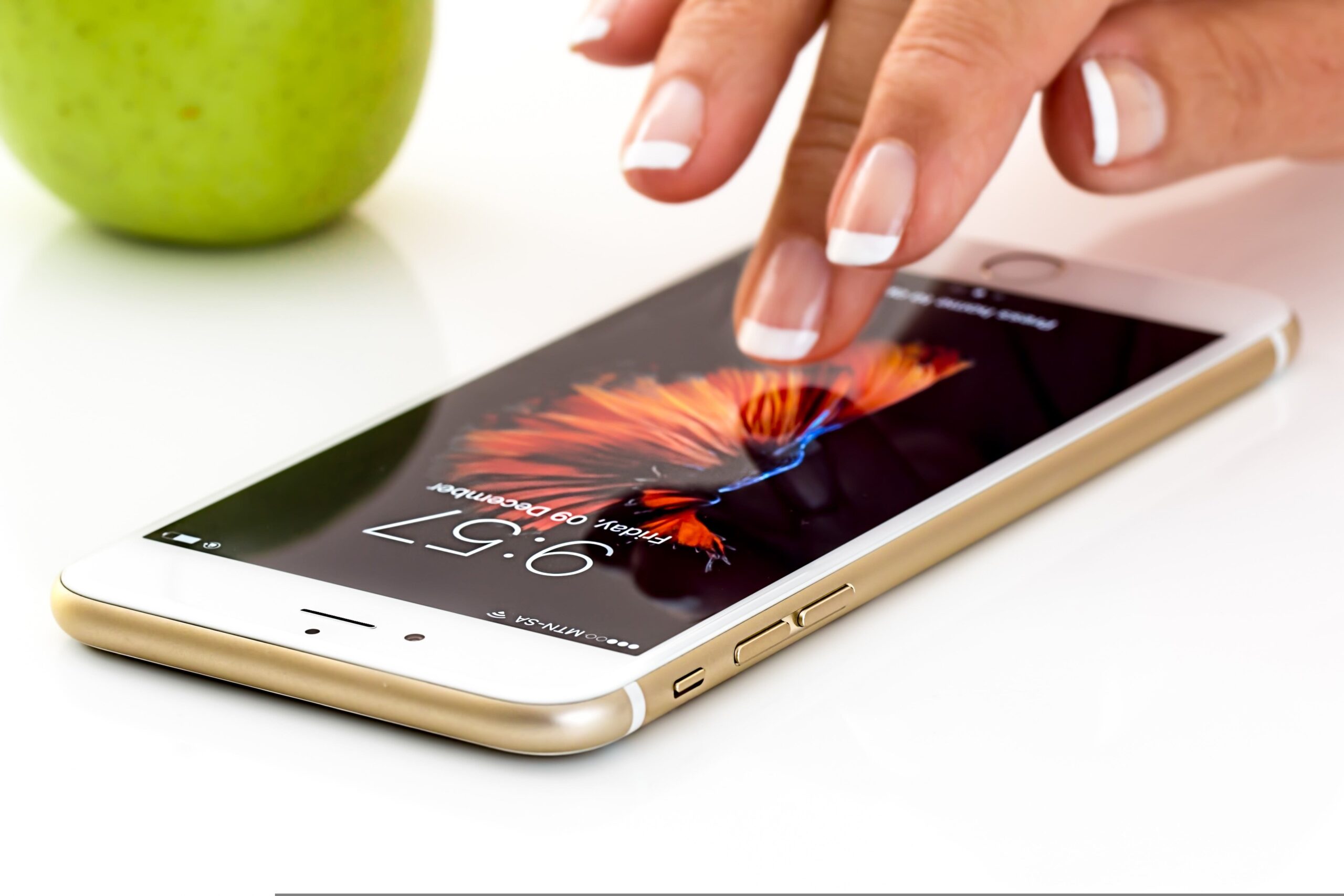
Running out of storage is one of the most common problems on both Android and iPhone. When your phone is full, it becomes slow, can’t take photos, can’t install apps, and may even freeze or crash. The good news is: you can easily free up space—without deleting important files.
This complete guide will show you every method to clean your phone, organize your data, and keep your storage healthy in the long run.
1. Why Your Phone Runs Out of Space
Phones get filled up for many reasons, such as:
- Photos and videos taking too much space
- Apps growing over time
- Downloads and WhatsApp media
- Cache files
- Large games
- Offline music and movies
- Duplicate or unnecessary files
Understanding the cause makes cleaning easier.
2. Check What’s Taking Up Space
Before cleaning, see which items are using your storage.
On Android:
- Open Settings
- Tap Storage
- View categories: Apps, Photos, Videos, System, Cache
On iPhone:
- Go to Settings
- Tap General
- Tap iPhone Storage
- View which apps take the most space
Knowing the biggest storage consumers helps you clean efficiently.
3. Clean Photos and Videos (The Biggest Storage Problem)
Photos and videos are usually the main reason your phone is full.
3.1 Delete Unnecessary Photos
- Duplicates
- Blurry shots
- Screenshots you no longer need
- Old downloads
3.2 Move Photos to Cloud Storage
This frees space without losing anything.
Recommended options:
- Google Photos (Android/iPhone)
- iCloud (iPhone)
- OneDrive
- Dropbox
Once uploaded, you can delete local copies.
3.3 Optimize Storage
On iPhone:
Settings → Photos → Optimize iPhone Storage
On Android (Google Photos):
App → Profile → Photos settings → Backup → turn on Storage saver
This keeps smaller versions of photos on your phone and stores full-quality ones online.
4. Clear Cache and Temporary Files
Cache helps apps run faster, but over time it becomes huge.
4.1 Clear Cache on Android
- Settings
- Apps
- Choose app (e.g., TikTok, Chrome)
- Storage
- Clear Cache
Do not press “Clear Data” unless you want to reset the app.
4.2 iPhone Cache Cleaning
iPhones don’t allow manual app cache cleaning, but you can:
- Offload apps
- Clear Safari history
- Delete and reinstall apps with large cache (Snapchat, TikTok)
5. Delete Unused Apps
Most people have apps they don’t use.
On Android:
Settings → Apps → select app → Uninstall
On iPhone:
Settings → General → iPhone Storage → Offload App
(or delete directly from the Home Screen)
Look for:
- Games you don’t play
- Apps you installed once
- Old study or work apps
- Social media apps you can use in the browser
6. Clean WhatsApp, Messenger, and Social Media Apps
Messaging apps store videos, photos, and voice notes automatically.
6.1 WhatsApp Cleanup
WhatsApp → Settings → Storage and Data → Manage Storage
Delete:
- Large videos
- Forwarded media
- Old chats
6.2 TikTok / Instagram / Snapchat
These apps store massive cache files.
Solution:
- Clear cache (Android)
- Delete and reinstall (iPhone)
7. Remove Downloaded Media (Offline Content)
Offline files take up many gigabytes.
Examples:
- Netflix downloads
- Spotify offline songs
- YouTube offline videos
- Podcasts
- Documents from WhatsApp or Messenger
How to clean:
Open each app → Downloads → Delete unwanted files.
8. Move Files to External Storage or Computer
If your phone has too many important files:
Use:
- SD card (Android)
- USB flash drive with a phone adapter
- Transfer to your PC or laptop
- Upload to cloud storage
This frees your internal space immediately.
9. Delete Large Files
Both Android and iPhone offer tools to find huge files.
Android:
Settings → Storage → Files → Large Files
iPhone:
Settings → iPhone Storage → Review Large Attachments
Delete old videos or documents you don’t need.
10. Empty the “Recently Deleted” Folder
Even if you delete photos or videos, they still stay in the bin for 30 days.
Android:
Gallery → Trash / Recently Deleted → Empty
iPhone:
Photos → Albums → Recently Deleted → Select All → Delete
This can free several gigabytes instantly.
11. Reset Storage-Heavy Apps
Some apps keep growing forever.
Examples:
- TikTok
- Chrome
- Snapchat
- Messenger
Fix:
Delete → Reinstall
This removes all hidden storage and cache.
12. Use “Lite” Versions of Apps
Many apps have lighter versions that take less space.
Examples:
- Facebook Lite
- Messenger Lite
- Gmail Go
- Maps Go
These are great for older phones.
13. Keep Your Phone Clean Automatically
To avoid running out of space again:
Android:
Enable Smart Storage or “Free up space” in Files by Google.
This automatically clears:
- Trash
- Duplicates
- Unused files
iPhone:
Go to Settings → iPhone Storage → turn on:
- Offload Unused Apps
- Optimize Photos
- Review Large Files regularly
14. Frequently Asked Questions (FAQ)
Q1: Why is my phone still full after deleting many files?
You may need to:
- Empty the “Recently Deleted” folder
- Clear app cache
- Restart your phone
Q2: Is it safe to clear cache?
Yes. Cache will rebuild automatically.
Q3: What is taking up “System Data” on iPhone?
It’s temporary files. Restart your phone to reduce it.
Q4: Does resetting my phone free space?
Yes—but only do it after backing up everything.